
Disk Space and Cleaning
Click on the free space indicator in the file pane. The volume card shows capacity, used, and free space. On APFS, other container volumes and the volume that the system can clear if macOS reports these values are visible separately.
- Disk space map
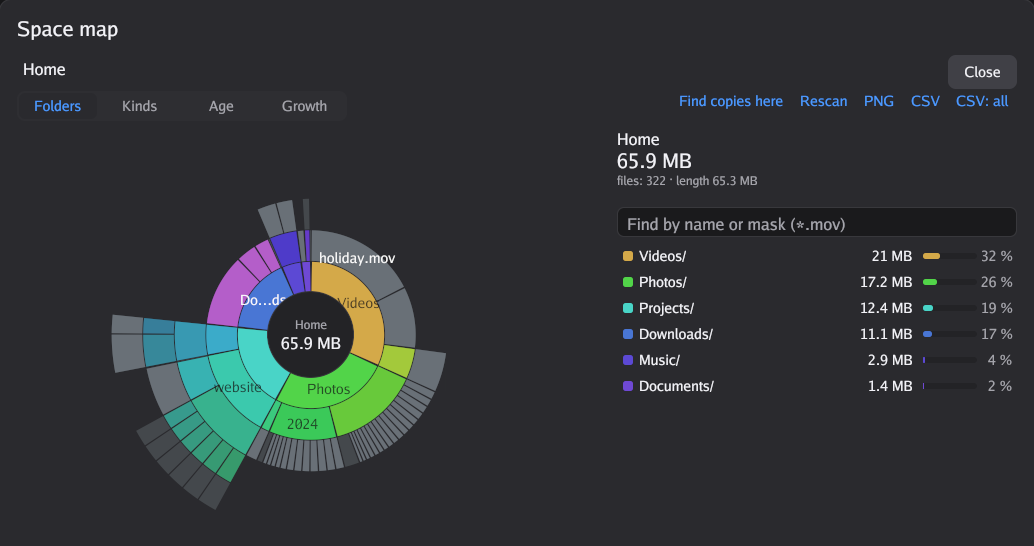
- Folders radiate in rings from the center. The width of a sector corresponds to the volume, and the color can be assigned by type or age of files. Click on a sector or the row on the right to find out, for example, which video folder has grown. On the map, you can find an object by name or mask and save the map as a PNG or export the data to CSV.
- Free up space
- From the volume card, open 'What to Free Up.' The program searches for known caches and old downloads, groups findings by categories, and shows the path and size. Expand a group, check the selected items, and confirm moving them to the Trash. For objects managed by another program, explanations and, where applicable, a command for manual cleanup are available. The list of rules depends on the OS.
What has changed and where copies remain
- Where did my space go?
- Select a folder and two dates. The history of measurements shows the change in occupied space for folders measured on both dates. File slices allow you to expand the folder and see the contribution of individual files by their length. The first slice can be saved directly in the report, and the next one after changes. These slices will be useful, for example, to analyze the growth of the backup catalog over a week.
- What changed between slices
- In the Disk Catalog, open 'Time Machine', select the volume and two slices. Filters show added, deleted, changed, and recognized as moved files. You can view the previous location of the document even after disconnecting the storage. The slice saves information about the file. To read its content, you will need the storage or a backup copy.
- Disk copies and duplicate search
- The catalog shows on which storages the file is found, as well as which files are known only on one disk. With checksums, the comparison takes into account the content. Matches only by name and size are marked as suspicious. For connected folders, there is a separate duplicate search with the option for byte-by-byte comparison.
How to extract a file from a disk image
For example, from a backup of a virtual machine, you need one contract. For this, you only need the desktop Archiver and disk image files. Running the guest Windows or Linux and connecting the disk to the system is not required.
- Find the disk file in the pane, for example
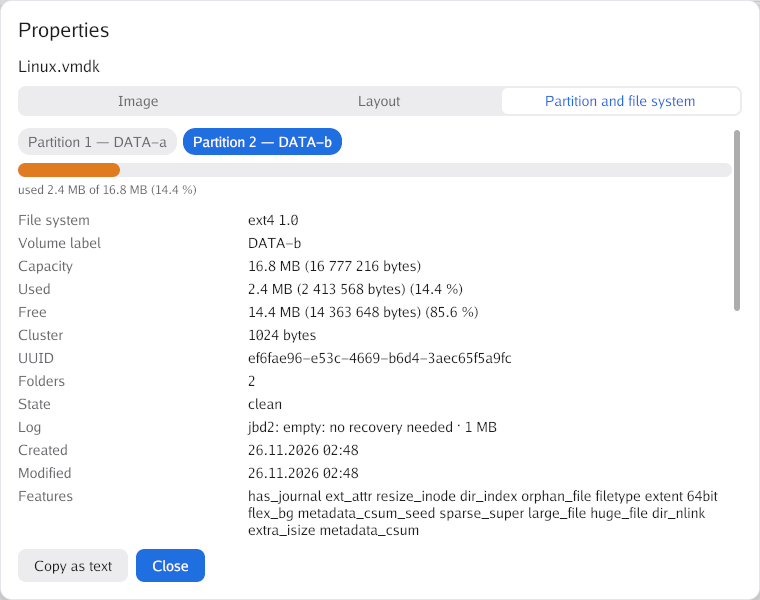
backup.vhdx, and open it with the key Enter. For the OVA package, first open.ova, then the nested.vmdk. - If the readable volume is one, its folders are visible immediately. If there are several, open the desired section. In the image information window, you can verify its type, size, and position on the MBR, GPT, or APM map.
- Go to the document or folder, select them, click «Extract», and specify the save location. This allows you to take the selected files separately from the rest of the disk.
Which media and file systems are read
- Virtual disks
- RAW/IMG, VHD/VHDX, VMDK, QCOW2, VDI, and Parallels packages
.hdd. Store parts of the composite disk together. For VirtualBox snapshots, you need the base VDI and intermediate parent disks, for a Parallels package —DiskDescriptor.xmland the files specified in it. - Windows and Linux
- FAT12/16/32, exFAT, NTFS, ReFS, ext2/3/4, and XFS. In Btrfs, you can read subvolumes and snapshots on the same device with Single or DUP placement. For F2FS, it supports unencrypted and uncompressed files with a correct checkpoint, on one device and a block of 4 KiB.
- Mac and optical disks
- Supported are HFS+, APFS, ISO 9660, and UDF, as well as unencrypted DMG and Apple Sparse Bundle containers in supported variants. For Sparse Bundle, the entire package is needed, including the block catalog
bands. - Clonezilla backups
- Open the backup package directory
parts, then the virtual partition.partclone. Save all parts of the selected partition. When reading a compressed stream, Archiver uses temporary space on the disk. - Installers and packages
- From supported CAB, MSI, WIM, DEB, and RPM files, you can extract the necessary components without running the installer.
- Linux volumes and firmware images
- Archiver can read supported LUKS1/2 volumes by password and logical LVM2 volumes with linear placement on a single physical volume. It can also view EROFS and SquashFS images.
The file extension indicates the container. Access to documents also depends on the file system of the partition, its state, and encryption. If one partition cannot be read, check the warning when opening and the list of available volumes.
Which encrypted disk images can I create and edit?
Desktop Archiver supports creating and editing these images starting with version 0.2.9.
- LUKS1 and LUKS2
- Create a passphrase-protected volume from files and folders. Add, replace, rename or delete files on a supported file system.
- TrueCrypt and VeraCrypt
- You can select keyfiles when creating a volume and set a PIM for VeraCrypt. When editing an outer volume that contains a hidden volume, supply the hidden volume’s credentials to protect it from being overwritten.
- BitLocker
- NTFS images created and edited with AES-256-CBC have been independently read back with libbde and NTFS-3G. The XTS-AES-256 profile requires the Windows BitLocker service. An end-to-end Windows test of this profile is pending.
- PGP Virtual Disk
- Supported profiles include PGPdisk 6 and passphrase-protected PGP Desktop 9 virtual disks for Windows and 10 for Mac. The latter two support fixed-size and dynamically growing images.
- PGP Whole Disk Encryption
- The early profile requires an image containing BootGuard 3.2. PGP WDE 9.10 requires original Windows 9.10.0 recovery media in ISO or IMG format. The PGP driver in Windows PE opened data disks created by Archiver. Tests for 9.10 covered FAT16, exFAT and NTFS on fully encrypted data images with passphrase authentication.
Quick search by file system index
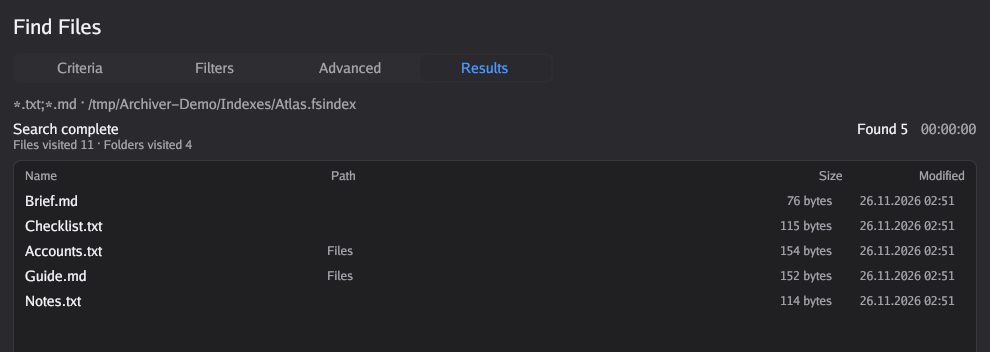
If a removable disk or large image needs to be searched again, save its catalog using the command «Extract FS Index…». The file .fsindex stores paths, sizes, dates, and available attributes. After disconnecting the source, you can open the index as a tree and search through it without re-scanning the disk.
- What can be searched
- Search accepts masks and exceptions, regular expressions, size and date ranges. When building, you can select partitions and save checksums. For sources that provide this information, there are filters by owner, permissions, named streams, and deletion records.
- What is needed for reading
- The index answers the question 'where was the document located at the time of indexing?'. To extract a file or search for a phrase within its text, you need the original disk, an image, or a copy with the content. There is no need to connect the source for repeated search of the name.
For example, save the project folder index and later find all PDFs within it. Store the index on your computer if you plan to disconnect the original storage.
archiver fsindex build "Project Archive" -o project.fsindex
archiver fsindex search project.fsindex "*.pdf"
Creating, modifying, and unpacking archives
- Browse databases as folders
- In the online edition, SQLite and DBF open as folders with tables and row export. You can browse MySQL, MariaDB and PostgreSQL plain-text dumps, as well as pg_dump custom archives. InnoDB tablespaces (.ibd) expose pages and the embedded MySQL dictionary when present. Physical PostgreSQL heap segments expose pages and tuple headers. These formats are also available on the desktop starting with version 0.2.9.
- Select compression
- Create a ZIP for exchange, 7z or RAR5 for storage, TAR with gzip, XZ or Zstandard for file set transmission. Compression mode
bestcompares compression samples with several codecs. During packaging, you can see the processed volume, speed, and compression level. You can save the settings of a repeating task to a profile. - Password and volumes
- For a confidential set, you can protect the archive with a password and encrypt file names in supported modes 7z and RAR5. If you need to transmit 7z in parts, specify the volume size when creating. To open, keep all parts together, and in the browser, select them simultaneously.
- Extract or change one file
- Open the nested archive as a folder and mark the necessary records. In supported writable archives, you can add, delete, or rename a record. After editing a file in an external editor, confirm updating its copy inside the archive.
- Check the received copy
- «Test» decodes records and verifies the control data provided by the format. For sending a file separately, you can calculate the SHA-256 and compare it with the sum received by the recipient. For supported RAR with a recovery record, an attempt to fix damages is available.
Two panels and file transfer
Open the source on the left, the destination on the right. Each side has its own tabs, history, and favorites. When session recovery is enabled, Archiver will return both panels after a restart. Opened local folders update when external changes occur.
- Copying and moving
- F5 copies the selected, F6 moves it. In the dialog, the destination, current stage, and volume are visible. During local transfer between volumes, the program checks the result before deleting the source. If names match, you can compare files, select an action for the conflict, or merge folder contents.
- Large images and Windows specifics
- When copying sparse files, Archiver can save unoccupied sectors if both file systems support the operation. On NTFS, copying and verifying named data streams is supported.
- Recurring tasks
- Save the filter by name, date, size, and attributes, then apply it to the pane, search, or transfer. To synchronize two folders, first view the change plan. For bulk renaming, use templates, counters, and a preview of new names.
Find a file and view its contents
The quick filter narrows the current list. To search in the folder tree, open 'File Search' (Alt + F7). For example, set a mask *.txt;*.md, include text search and enter a phrase. If needed, limit the date range, depth of search, or include search within supported archives. The result can be opened in the pane while other files are still being checked.
Text viewer F3 allows reading large logs in parts and searching for lines within them. For binary data, there is a hexadecimal viewer, for images — a preview. Through 'Open with', the file can be passed to a compatible system application.
File transfer and remote pane
- Between NeuralGate Archivers
- Open reception on one device, select it on another, or send an invitation with a QR code. Upon first connection, verify the code on the screens and confirm reception. Applications remember trusted devices. The mobile app tries a direct route. Through different networks, including LTE, files can be transferred between the app and the browser with a one-time invitation using end-to-end encryption. To transfer through the NeuralGate Archiver, the sender or receiver needs an active paid license. In the browser, select the signed license file for file exchange.
.archrelaybefore sending or creating an invitation. When repeating the transfer, compatible devices send the remainder of the large file and verify the SHA-256. Instructions for exchange and download. - Other machine in the pane
- The owner of the desktop Archiver selects what to open for a trusted device — one folder or available disks and locations. The connected pane allows viewing them and downloading files. Access to this pane is provided for reading and can be revoked.
- Network storage
- You can connect to SFTP, FTP/FTPS, WebDAV, or S3-compatible storage in the pane. Copying and other actions consider the user account permissions and server capabilities.
Command line, file server, and AI agents
Commands are available for batch processing archiver list, test and extractFor example, archiver test backup.zip checks the readability of the archive in a backup scenario.
The local HTTP server opens the selected folder in the browser. A client with a token can view and download files. If the owner allows writing, the client can create an archive or extract selected records. In the server window, statistics and current operations are visible.
Through the HTTP API or MCP agent, the client can get a list of files, set an archive task, monitor the stage, and request cancellation. Management of the open window is done separately. With this permission, the agent can navigate to the desired folder, select files, and open the standard copy dialog for user confirmation.
What functions are available on your device
- Windows, macOS, Linux x86-64
- Desktop window and command line, including the file map, disk catalog, indexed search, images, network panels, and local server. For Linux ARM64, a command line package for handling archives, images, and
.fsindex. The trial period for the desktop edition is 30 days. Activation process. - Android
- Open the archive from the system file selection, find the record by name or path, and save the selected one. From documents, photos, and videos, you can create a ZIP, 7z, or RAR5, then transfer it via 'Share' or another Archiver. On a wide screen, you can work with two archives side by side.
- Browser, iPhone and iPad
- The online Archiver engine processes the selected files on the device. You can view the archive, check it, and download individual records or compile the selected ones into a ZIP. For iPhone and iPad, the website offers a Safari version with the option to add to the Home screen.