For Astra Linux on x86-64, select DEB; for RPM systems, select RPM. Open the package in the system installer. To install in the home folder, extract the TAR.XZ and run ./install.sh. On x86-64, you can use the GUI and command line; on ARM64, you can use the command line.
The full edition is available for 30 days. After that, you can still browse, extract and test archives, and create ZIP files. License Terms
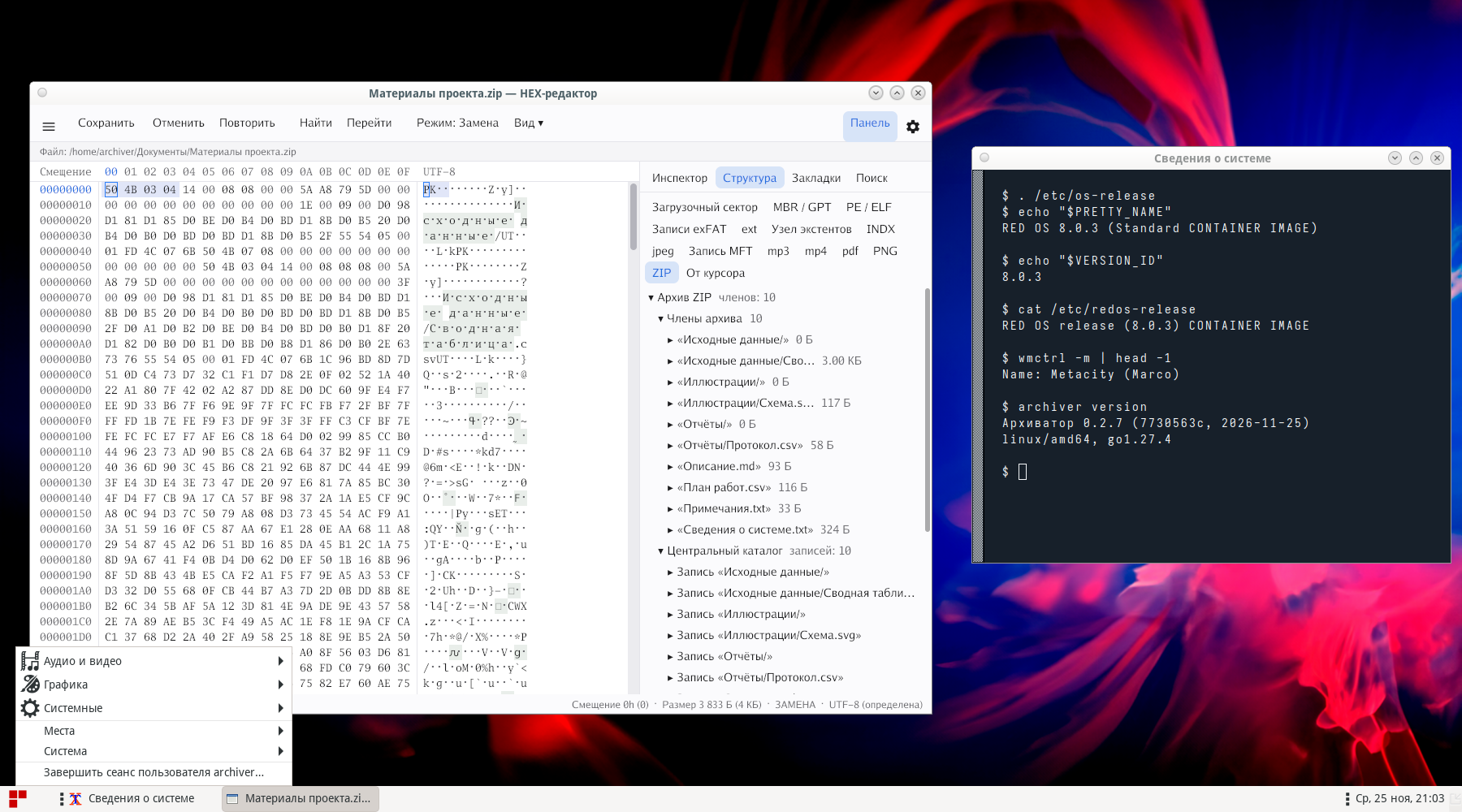
ZIP open with double-click and extract to default workspaces in Fly in Astra Linux 1.8.7 and MATE in RED OS 8.0.3. Separately checked nine formats in seven container environments x86-64.
Five desktop tools in action with test data. Select a task and click the image to zoom in.
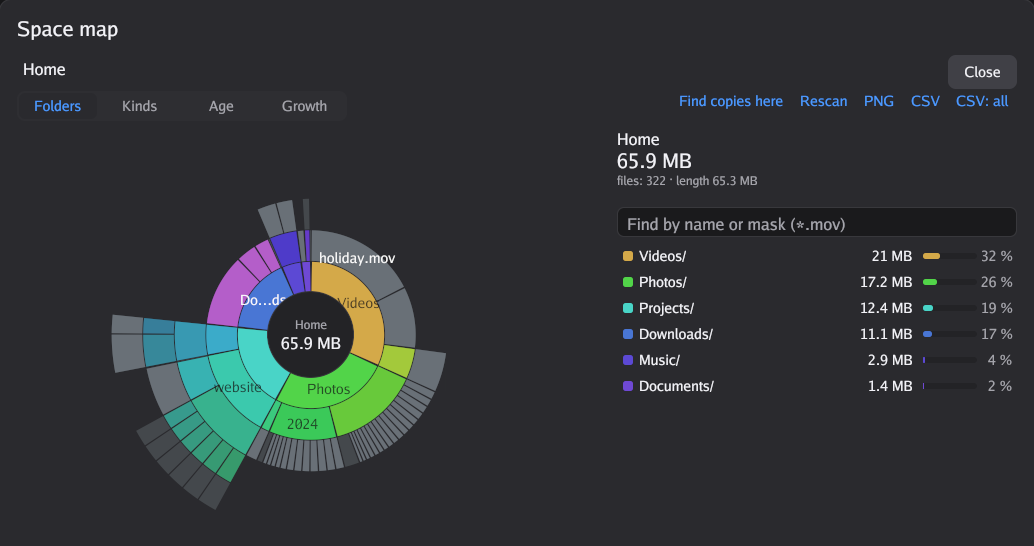
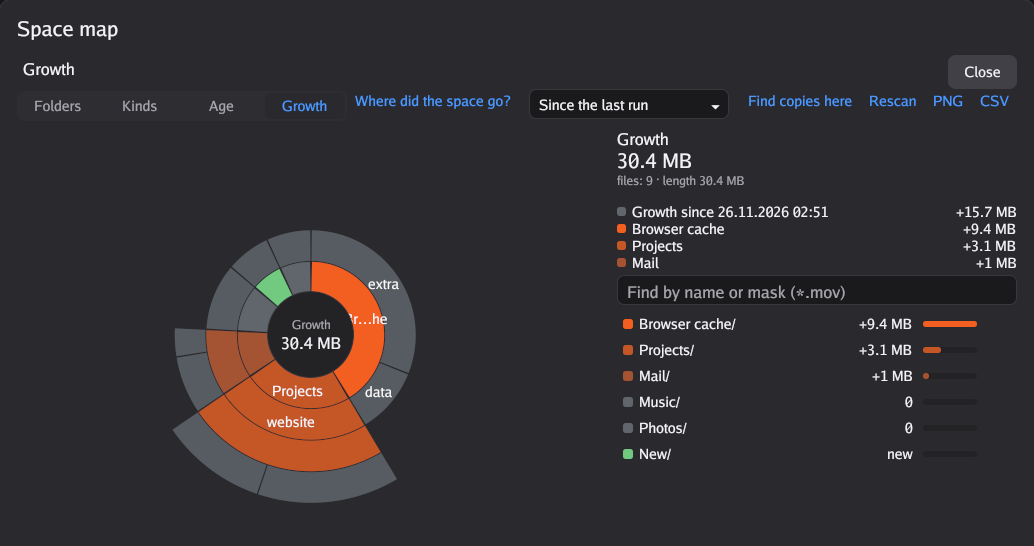
Which folder took up the disk?
Each ring represents the next level of folders. The wider the sector, the more space it occupies. Click on a large sector to see its contents. You can switch colors from folders to file types or ages.
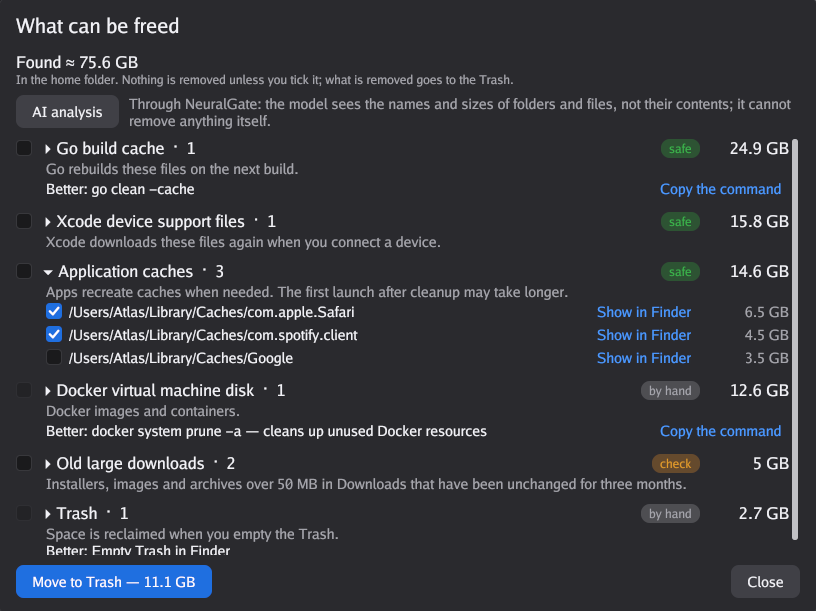
The Archiver finds caches, old downloads, and other candidates for cleaning. Expand the group, check the paths, and mark what's needed. The button will show the volume of the selected items before moving to the Trash.
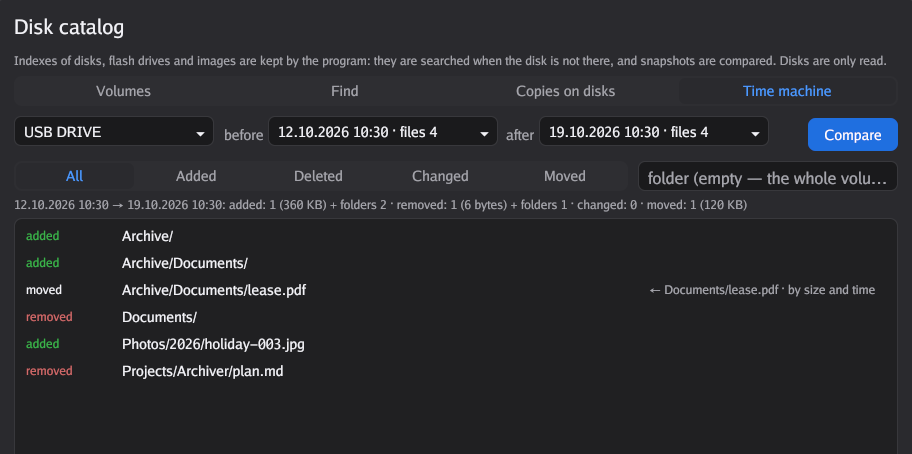
In the disk catalog, open Time machine and choose two saved snapshots to see which files were added, removed, changed or moved. Saved snapshots remain available after you unplug the drive.
Grow Mode on the map shows changes since the last measurement. In the 'Where Did the Space Go?' report, you can select dates and expand growth by folders. If file slices are saved, individual files are also visible.
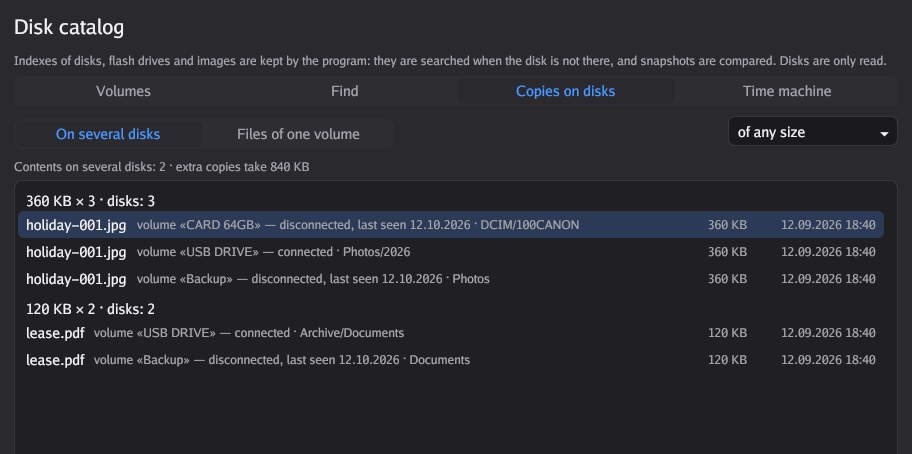
The catalog combines files from different carriers into groups of copies. Matches only by name and size are marked separately. Before cleaning the disk, check which files are unique to it.
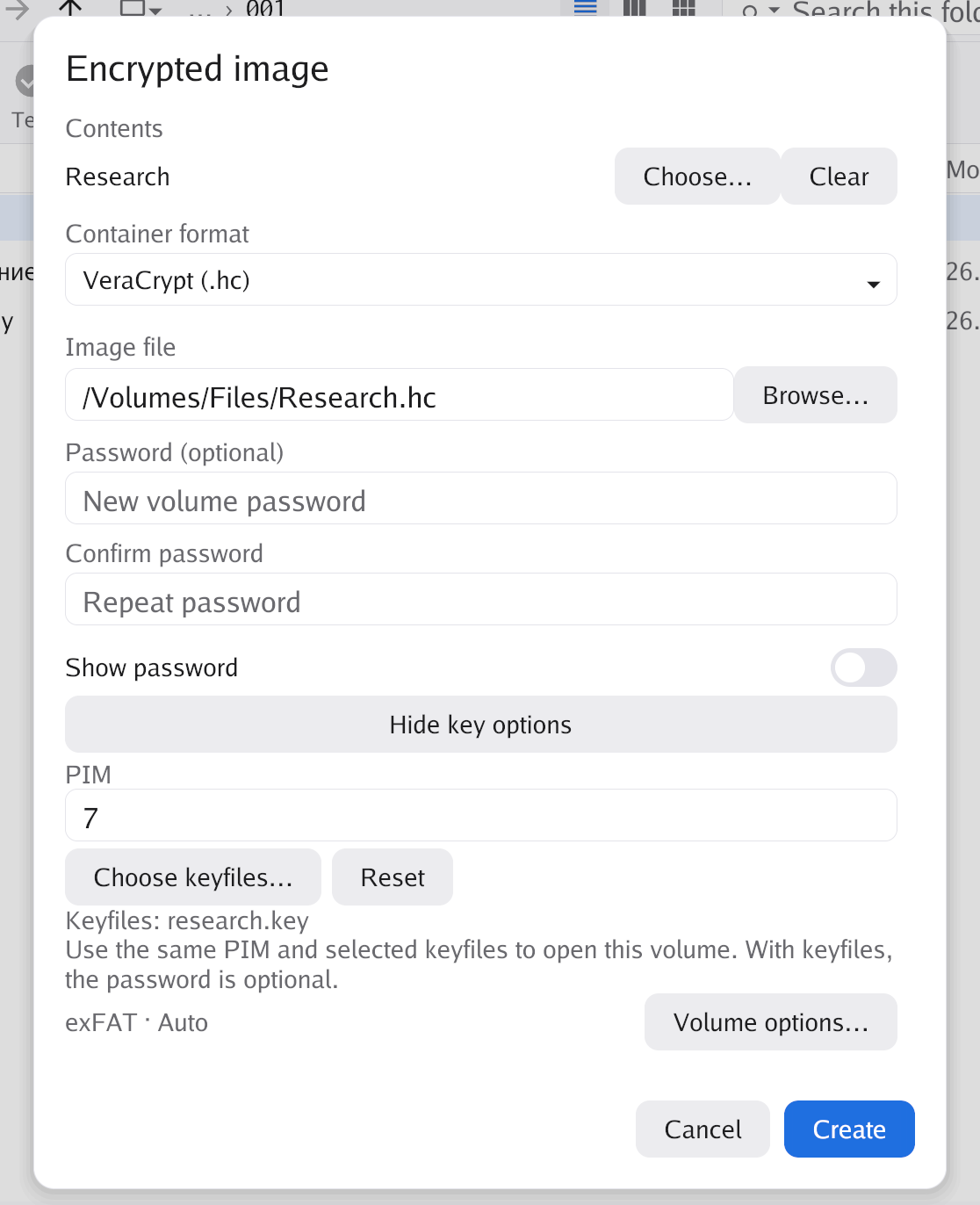
With Archiver 0.2.9 for desktop, you can create an encrypted image from files, then add, replace or delete them. Supported formats include LUKS, VeraCrypt, TrueCrypt, BitLocker and passphrase-protected PGP images.
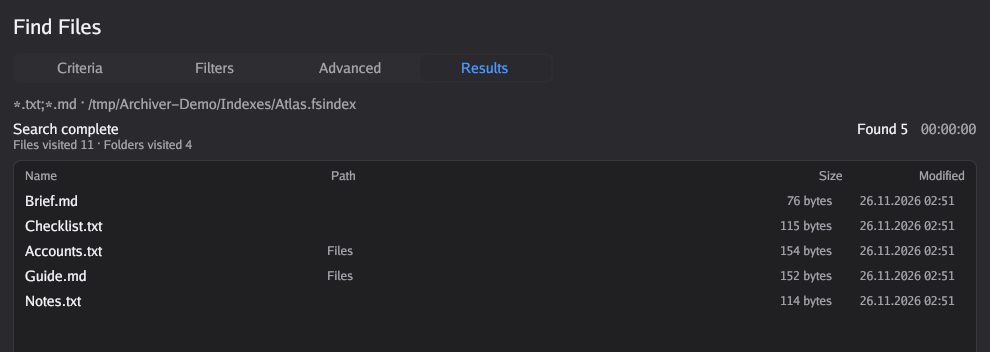
Save a .fsindex index for a folder, image or partition. Later you can search for a document by name, size or date and see which drive to reconnect to retrieve it.
Open File transfer in the app or browser. The recipient shows a QR code or sends an invitation. For a first connection, compare the code on both screens. The recipient sees file names and sizes before accepting. To send files through our server, one of you needs a paid license.
The phone can be on a mobile network, while the computer is at home on Wi-Fi. The Porta server relays the stream with end-to-end encryption. If the connection is lost, create a new invitation and resend the same files. Compatible versions will send the remainder and verify the file by SHA-256.
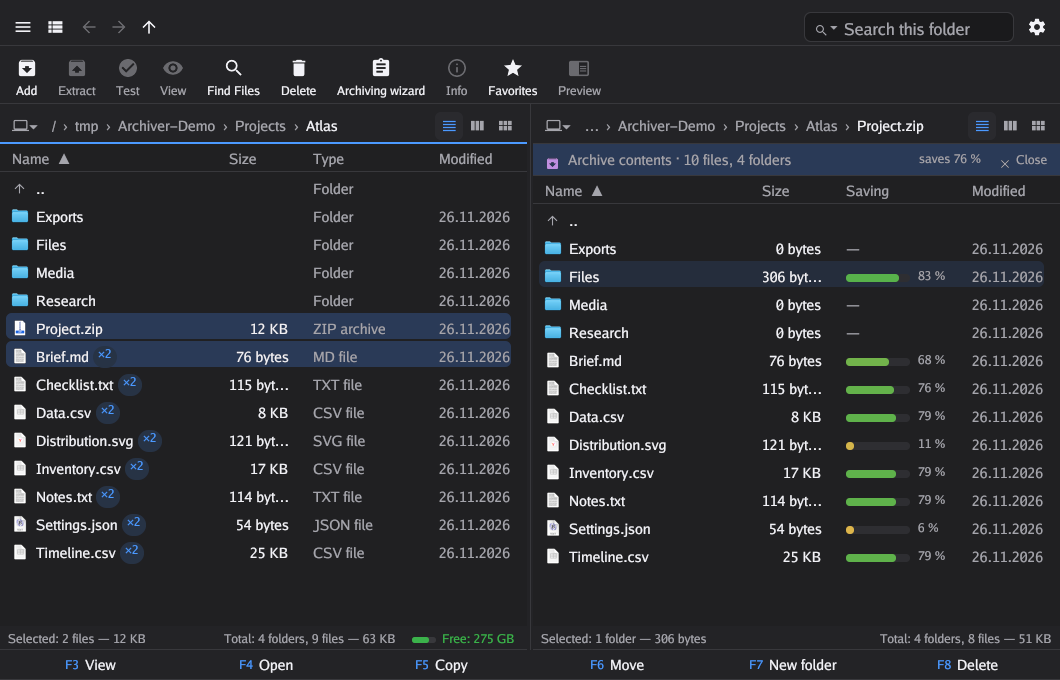
In the desktop Archiver, you can place a folder next to an open archive. Navigate to the nested archive, find the document, and return to the original list.
Select compression for samples, protect documents with a password, or split a 7z file into volumes. After transfer, run the archive check at the recipient's end.
Use the CLI, local HTTP API or MCP to test an archive and extract selected entries. The owner must grant separate permission to control an open app window.
Open the online archiver, click 'Select File', and specify the archive. For a multi-volume archive, select all parts at once. Find the required file and save it to the device.
How do I install Archiver on Astra Linux, RED OS, ALT Linux and ROSA?
For Astra Linux on x86-64, download the signed DEB. For RED OS, ALT Linux and ROSA, use the RPM. Update an installed package with the system package manager. A portable TAR.XZ build is available for installation in your home directory.
The 30-day trial starts the first time you launch the desktop app. The GUI and command line share the same trial. After the trial or a time-limited license expires, you can still browse, test and extract all supported archives and create ZIP files for free. Other features require a license. A notice linking to the website appears each time the app starts. Your archives and extracted files stay yours.
The desktop application reads ZIP, RAR, 7z, TAR, and disk images, including ISO, VHDX, and VMDK. For creating archives, it supports ZIP, 7z, RAR5, and the TAR family. Specific format and application version capabilities are described in the manual.
How can I extract a file from a virtual machine without starting it?
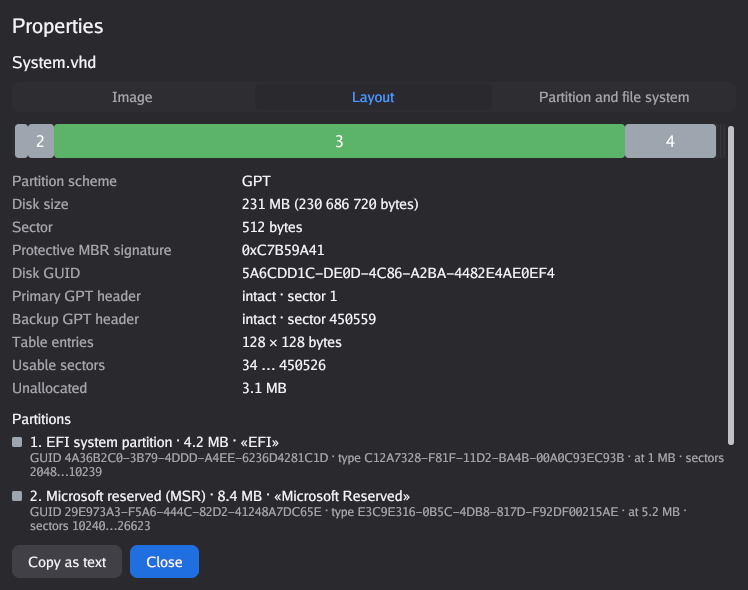
In the desktop Archiver, open the virtual disk, such as VHDX, VMDK, QCOW2, or VDI. If multiple volumes are available, select the one you need, open the folder, and click 'Extract' for the selected file. For differential VDI, you will need the base disk and intermediate snapshots.
The file remains on your device. The browser loads the WebAssembly engine, reads the selected archive locally, and offers to save the extracted files. For working with large archives on a computer, a desktop application is more convenient.
How to continue transferring a large file after an LTE interruption?
On the receiving device, create a new invitation, and on the sending device, select the same file. If resuming is supported by both devices, the receiver will notify you how much has already been saved. Before issuing the ready file, Archiver will verify the SHA-256.
Open the archive, navigate to the desired folder, and mark the file. Click 'Extract' or 'Download' for the selected record. The document will be saved separately, while the original archive will remain intact.
Gather all parts of one set. In the desktop application, keep them in one folder and open the first volume. In the online archiver, select all parts simultaneously.
Open the online archiver in Safari. In the 'Share' menu, select 'On the Home screen' and tap 'Add'. The icon will open the browser version. The archive can be selected from the 'Files' app.